
Installation
Mocap Cutter is the Gamecelsior Anim Tools plugin (GamecelsiorAnimTools): editor-only, available for Unreal Engine 5.6, 5.7 and 5.8 on Windows 64-bit, ships no content and adds nothing to packaged builds. How you install it depends on where you bought it.
Bought on Gumroad. Gumroad sends you a licence key. Then:
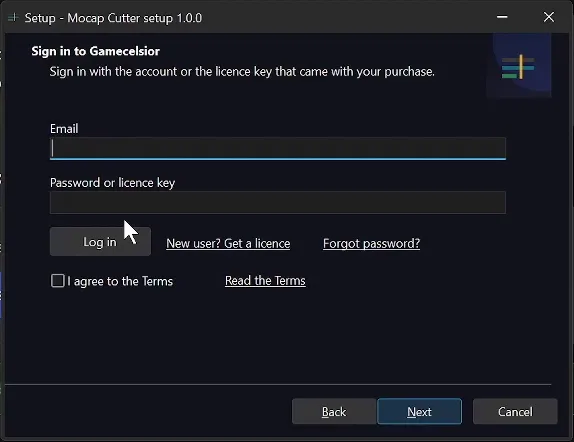
- Sign in to your Gamecelsior account with your email and that key (or set a password from the welcome email).
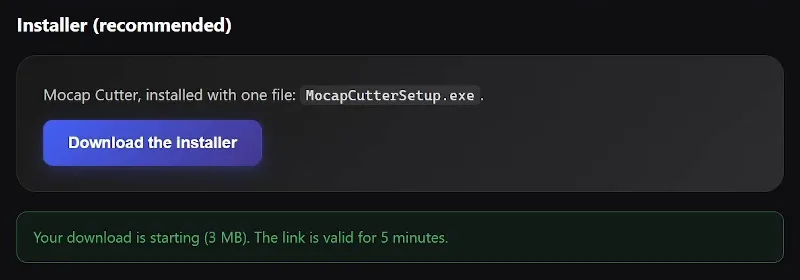
- On the download page, get
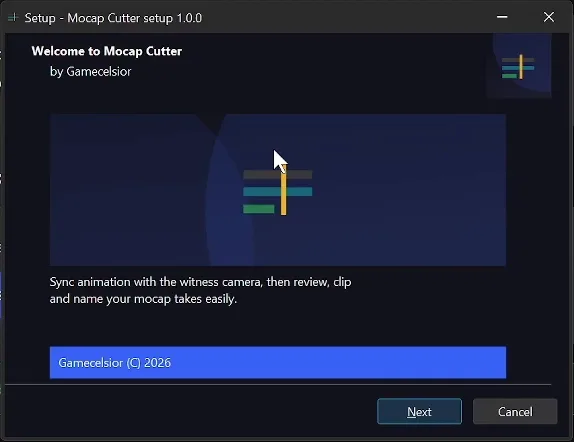
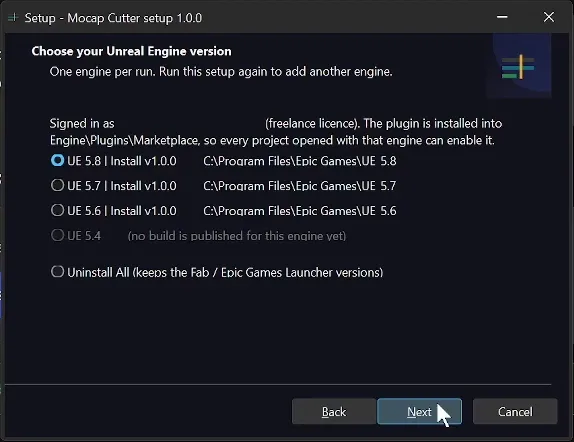
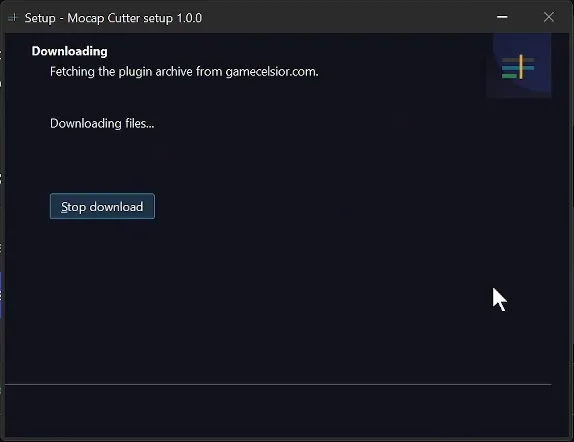
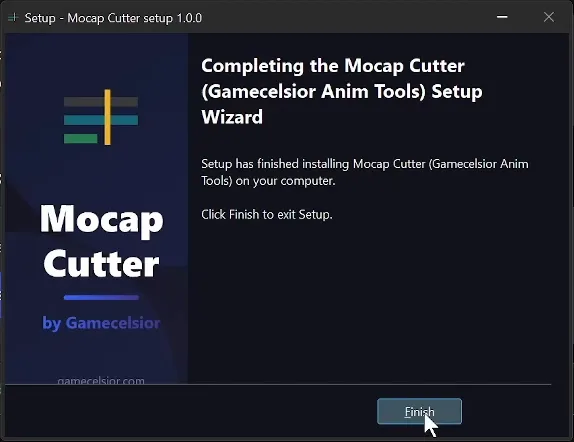
MocapCutterSetup.exeand run it. It is not code-signed, so Windows SmartScreen warns you: click More info, then Run anyway — expected for an unsigned publisher, not a sign of a bad download. - Sign in inside the installer, choose your engine (UE 5.6, 5.7 or 5.8), and it downloads the build and installs it into that engine's
Engine/Plugins/Marketplace/GamecelsiorAnimTools.
Prefer to do it by hand? The download page also offers a manual archive per engine version: unzip it into your project's Plugins/ or the engine's Engine/Plugins/Marketplace/.
Bought on Fab. No Gamecelsior account and no licence key: the Fab version opens as soon as the plugin is enabled.
- Close Unreal Editor. In the Epic Games Launcher, open Unreal Engine › Library and scroll down to the Fab Library section. Find Gamecelsior Mocap Cutter (refresh the Fab Library if it does not show yet).
- Click Install to Engine, pick your engine version (5.6, 5.7 or 5.8) and click Install. Epic compiles the plugin for each supported version, so there is nothing to build. It is installed as an engine plugin under
Engine\Plugins\Fab, with no separate installer. - Open your project with that engine version, tick Gamecelsior Mocap Cutter under Edit › Plugins › Gamecelsior, save and restart the editor. The tool is under Tools › Mocap Cutter.
The editor's Fab window (Window › Fab) can acquire the plugin, but it is installed to the engine from the Launcher as above. To install it for another engine version, run Install to Engine again; newer versions are delivered through Fab the same way. To remove it from an engine, click Installed Plugins under the engine tile in the Launcher, then Remove. On a source-built engine, copy the plugin folder into your project's Plugins/ and let Unreal compile it from the Source folder it ships with.
The Fab download also carries this guide as a PDF, Docs/MocapCutter_UserGuide.pdf in the plugin folder.
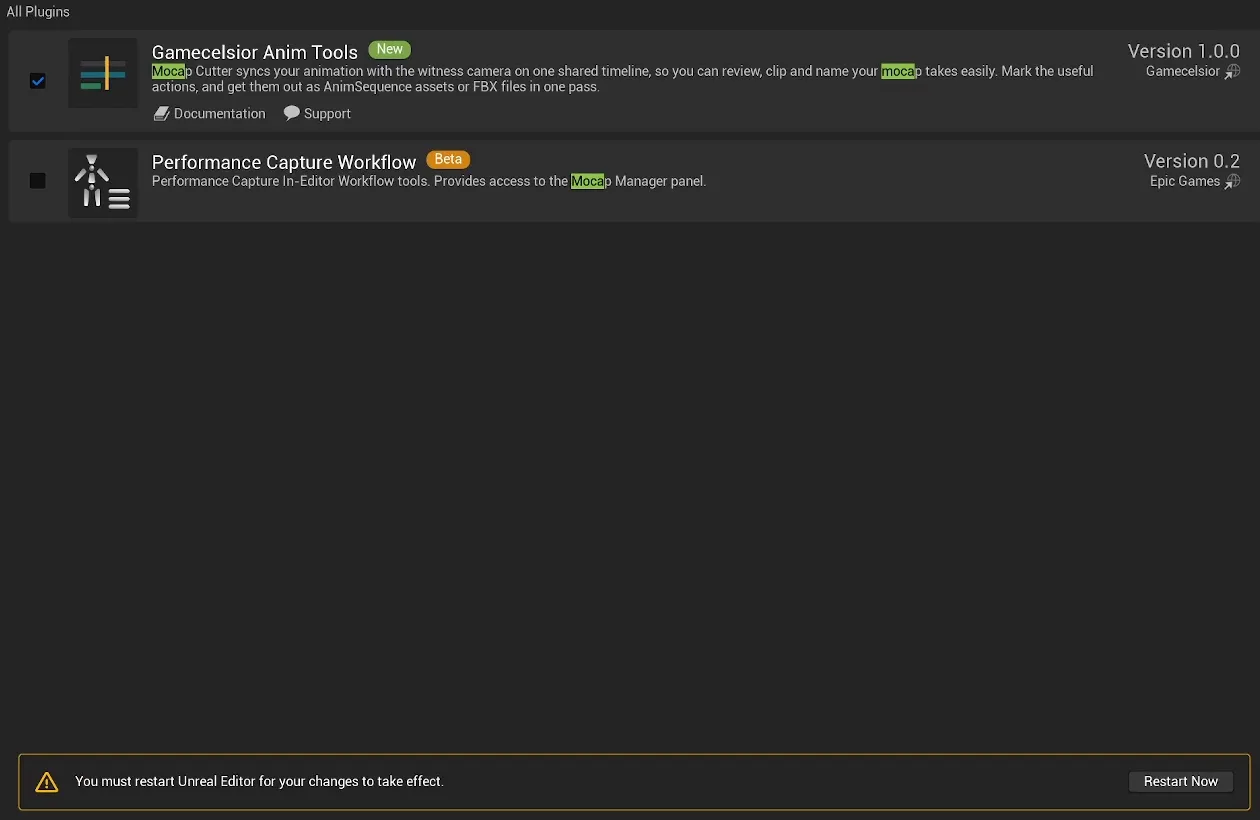
However you installed it, restart the editor and enable the plugin under Edit › Plugins › Gamecelsior. Video playback relies on the engine's ElectraPlayer and WmfMedia plugins; both are enabled automatically as dependencies.
Opening the tool
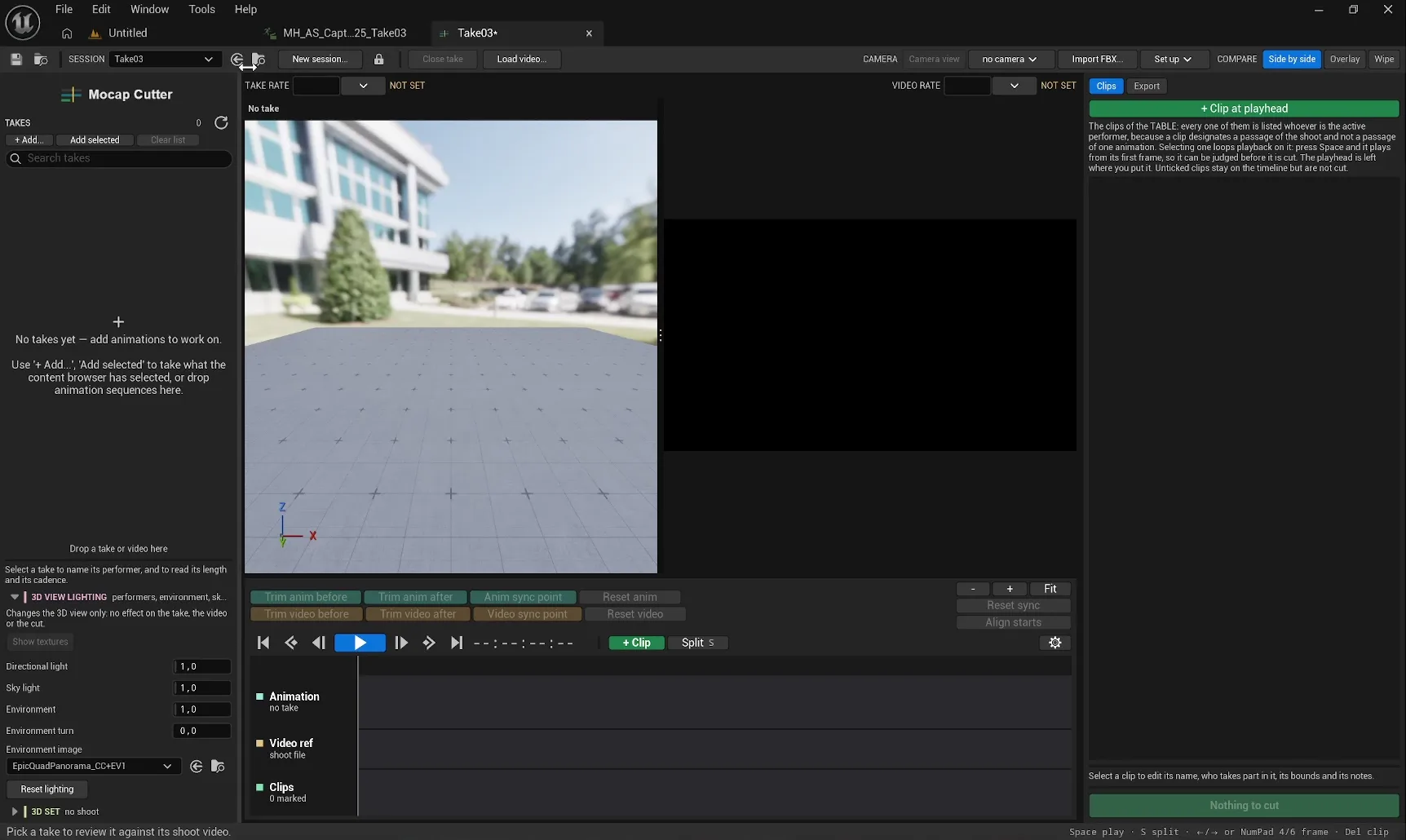
Tools › Mocap Cutter in the main menu opens the panel as a nomad tab. The tab is labelled with the open session and shows a * while it has unsaved changes. Double clicking a Mocap Cutter Session asset in the Content Browser opens the same tab on that session.
Sessions
Everything you author lives in a Mocap Cutter Session asset (UGamecelsiorMocapSession): which takes are on the table, their shoot video, the sync, the trims, the clips, the shoot camera, the divider position. It weighs a few kilobytes and references takes softly, so listing a session loads no animation; only the take you select is pulled into memory. Your captures are never written to.
Press New session… in the top bar, or create one from the Content Browser under Animation › Gamecelsior › Mocap Cutter Session. The tool remembers the last session opened and reopens on it. Any action that produces data offers to create a session first if none is open.
Adding takes
Three equivalent ways:
- + Add… in the Takes column opens a multi-selection asset picker;
- Add selected takes the current Content Browser selection;
- drag and drop AnimSequences from the Content Browser onto the Takes column.
The Add takes dialog shows one row per animation, pre-filled:
- Performer: guessed from the asset name (
MH_AS_Hunter_DodgegivesHunter), free to correct; - Tracked bone: a searchable bone tree read from the skeleton named in the asset registry, so listing bones never loads the take. Leave it empty for automatic (root, then pelvis);
- Colour: one distinct colour per performer from the session palette.
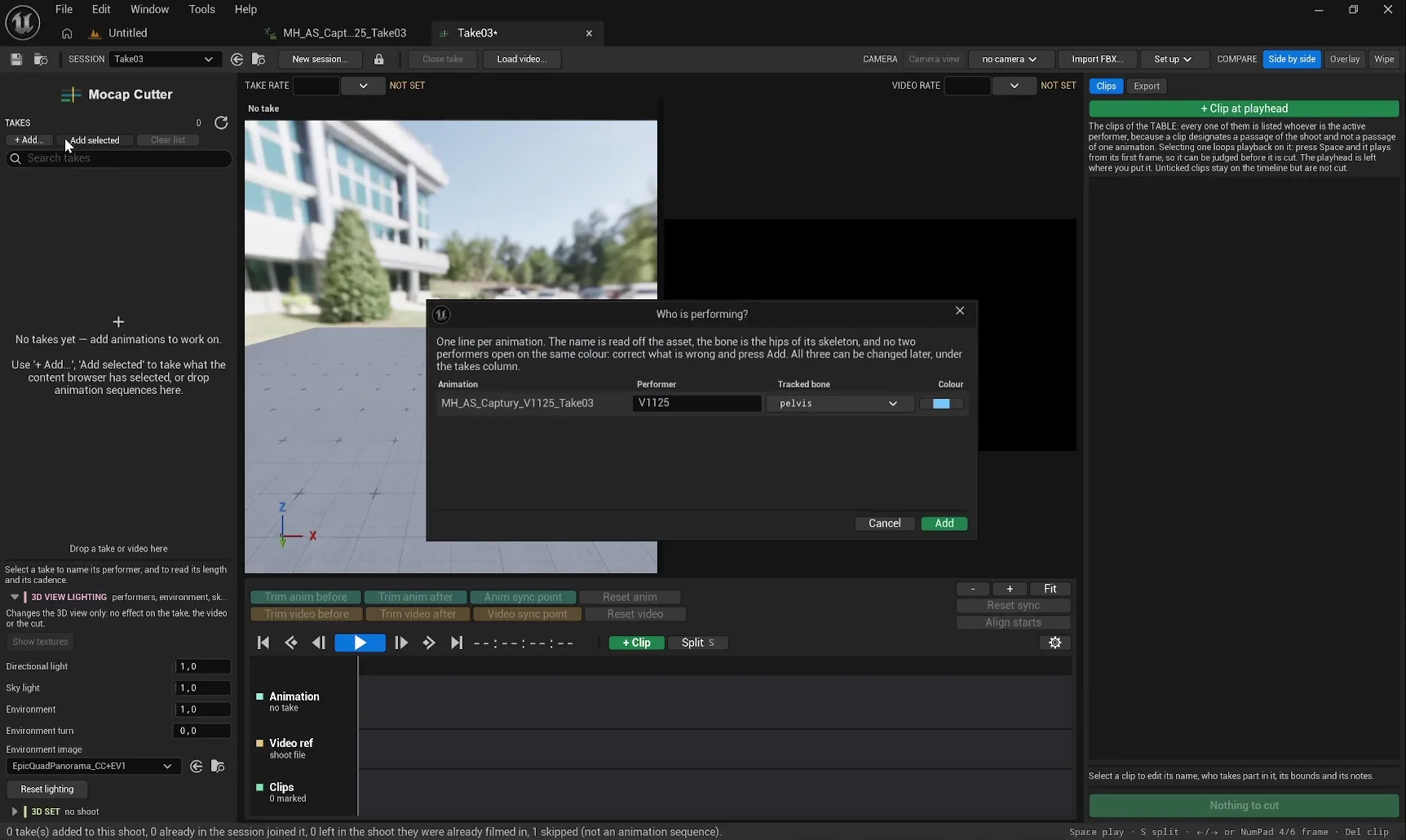
Each take is added to the shoot the table is already showing, so they all open on the same rush. Use Add to 3D scene / Remove from 3D scene to control who is visible in the preview.
Reference video
Press Load video… or drag a video file from the OS onto the Takes column. The video belongs to the shoot, not to one take: every take present is placed against it by its own sync.
The VIDEO RATE field shows whether the cadence was detected from the decoder, set by hand, or is still NOT SET. A manual value is never overwritten by a later detection, which is what makes a variable frame rate file or an exact NTSC rational stick. Presets: 23.976, 24, 25, 29.97, 30, 48, 50, 59.94, 60, 100, 119.88, 120, 240.
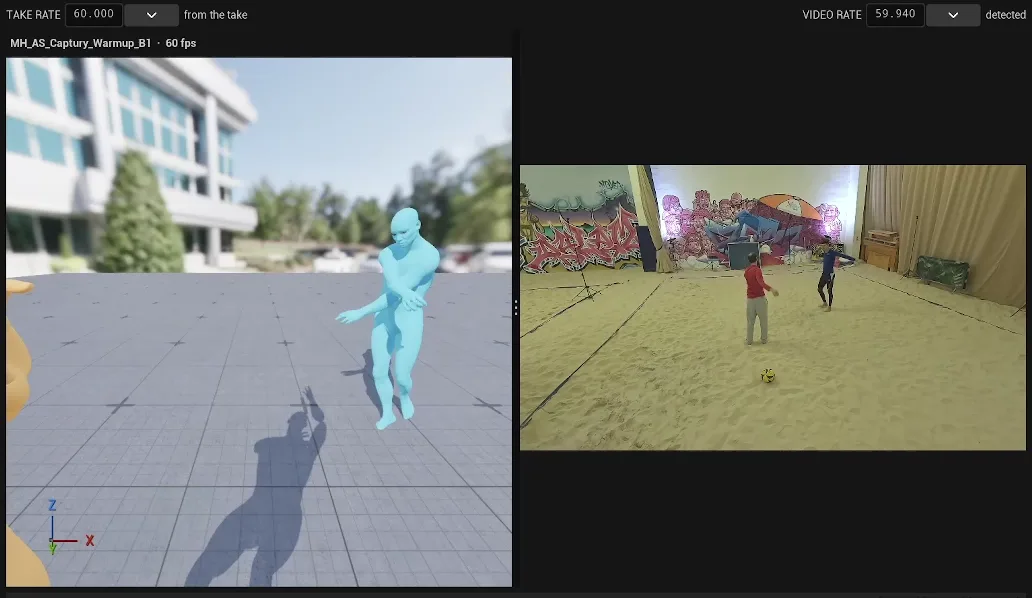
Accepted containers: .mp4 .m4v .mov .avi .wmv .asf .m2ts .3g2 .3gp .3gp2 .3gpp. Whether a file decodes depends on the codecs the media backend can open. An offline file is reported as such; Relink video… writes the path and nothing else. When a whole shoot folder moves, the tool offers to remap every other take of the session in one transaction.
Syncing the take to the video
- Park the playhead on a clear landmark in the take (a foot plant, a contact, a clap) and press Anim sync point.
- The timeline hands itself to the video (
Browsing: video). Scrub until the same landmark is on screen, nudge one video frame at a time with − / +, and press Video sync point.
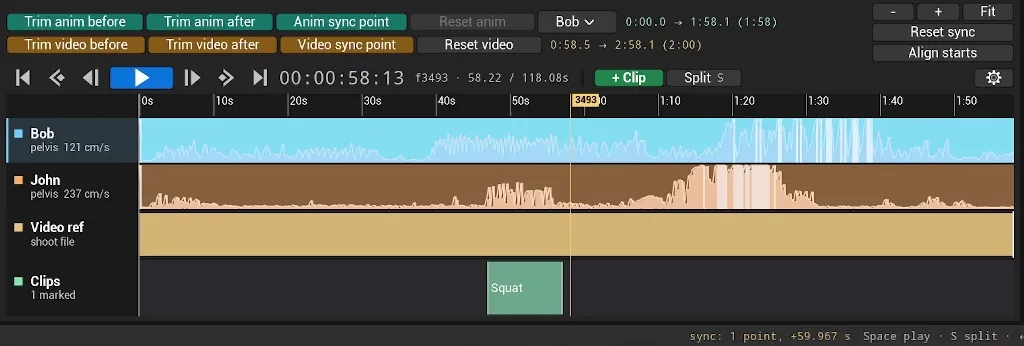
Either half can be marked first; marking the same track twice replaces the half that was waiting. As soon as both halves exist the pair is committed and the solver writes the offset, following videoTime = animTime × TimeScale + OffsetSeconds.
If the two media drift over a long shoot, mark a second pair far from the first (at least one second apart, ideally minutes) and the speed is measured too. Up to two pairs are kept; past that the oldest yields. Reset sync drops every point.
sync: from Hunter, +3.42 s).Coarse alternative: trim the dead head off both tracks (Trim anim before, Trim video before) and press Align starts. A measured sync always wins over aligned starts.
Comparing take and rush
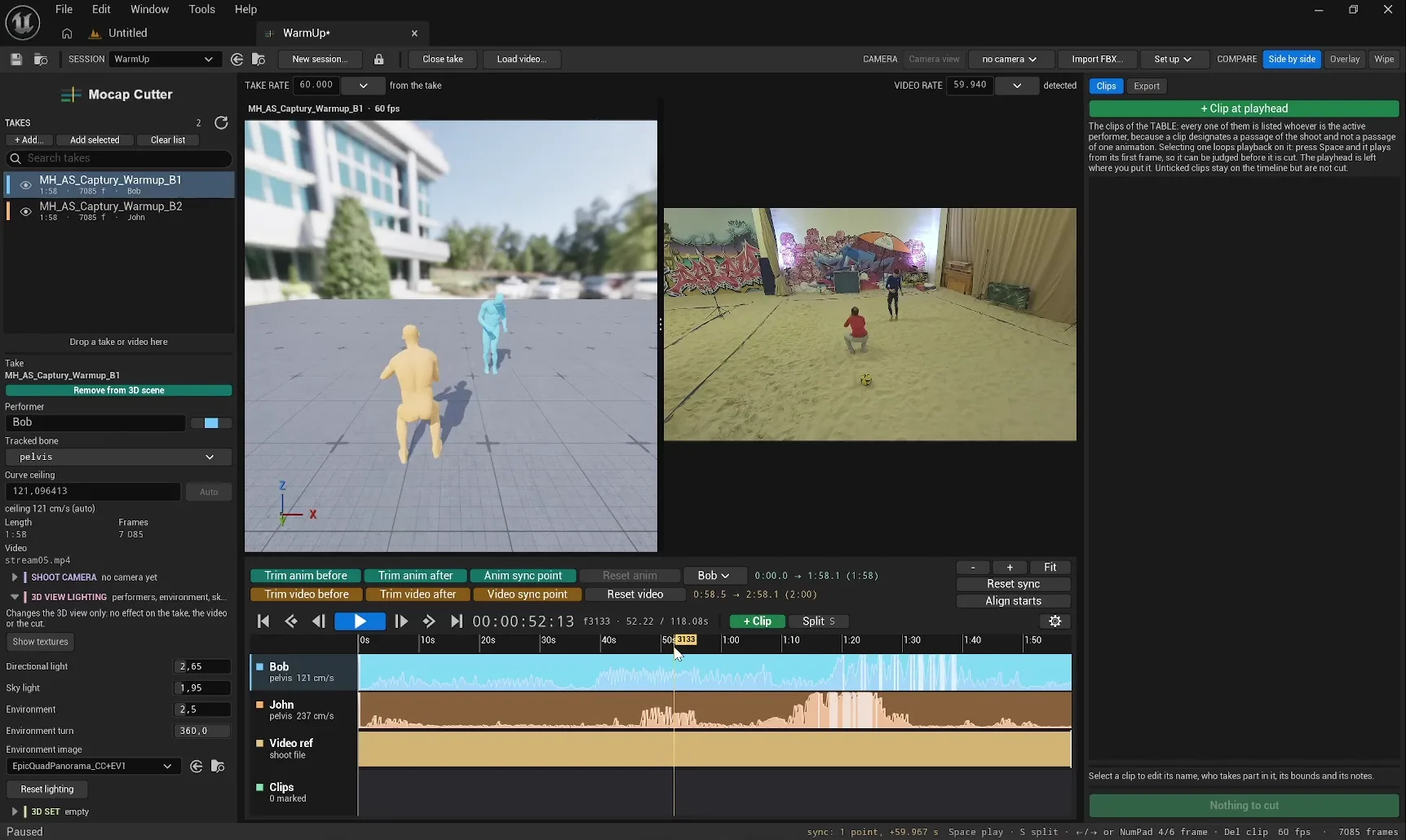
The COMPARE switch offers Side by side (draggable divider, remembered in the session), Overlay (video over the 3D view at an adjustable opacity) and Wipe (animation left of the handle, video right). Video zoom and pan are available; in superimposed modes the 3D render is magnified with the picture.
Shoot camera
The fixed camera that filmed the shoot is stored on the shoot: location, rotation, focal length, sensor width and height, optical centre shift. Fill it with Set up from a CineCameraActor in the open level, or Import FBX…, which opens the file with the FBX SDK, lists every camera node and leaves nothing behind in the project. Reading the file directly also recovers the optical centre shift the engine's own camera import drops. A Camera correction transform is the safety valve for axis, unit and origin mismatches between your capture software and Unreal.
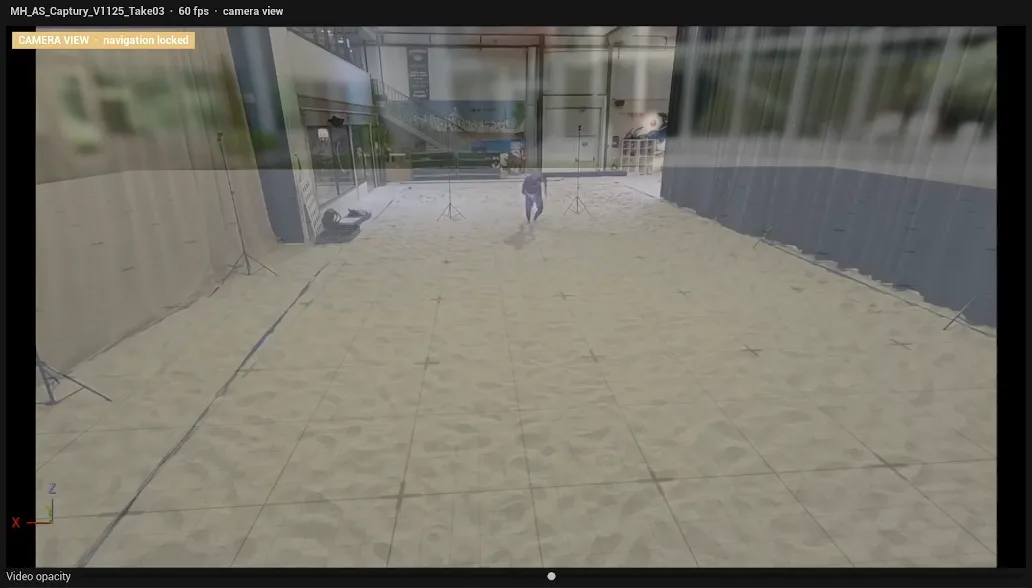
Toggle Camera view to lock the preview onto that camera with a constrained aspect ratio matching the letterboxed video. Mouse navigation is disabled while it is on. Fixed cameras only: an FBX camera carrying animation is reported as animated rather than reduced to one arbitrary instant.
Marking clips
- Park the playhead where the action starts and press + Clip at playhead. The new clip opens at 5 % of the visible window, named after the preceding clip with its number incremented (
Dodge_01→Dodge_02), with the same performers ticked. - Drag the clip body to move it, its edges to set in and out. Bounds snap to the playhead, the take ends, the trim bounds and other clips' edges; hold Shift to suspend the magnet.
- S splits the clip under the playhead.
- Double click a bar to rename it in place, or use the clip inspector: name, ticked performers, in and out as timecodes (
HH:MM:SS:FF,MM:SS:FF,MM:SSor seconds), an optional bar colour and free notes (never exported). - Untick a clip to keep it on the timeline but leave it out of the cut.
- Select a clip and press Space: playback loops on it, so a cut is judged before it exists.
- Delete removes the selected clip; Ctrl+Z restores it.
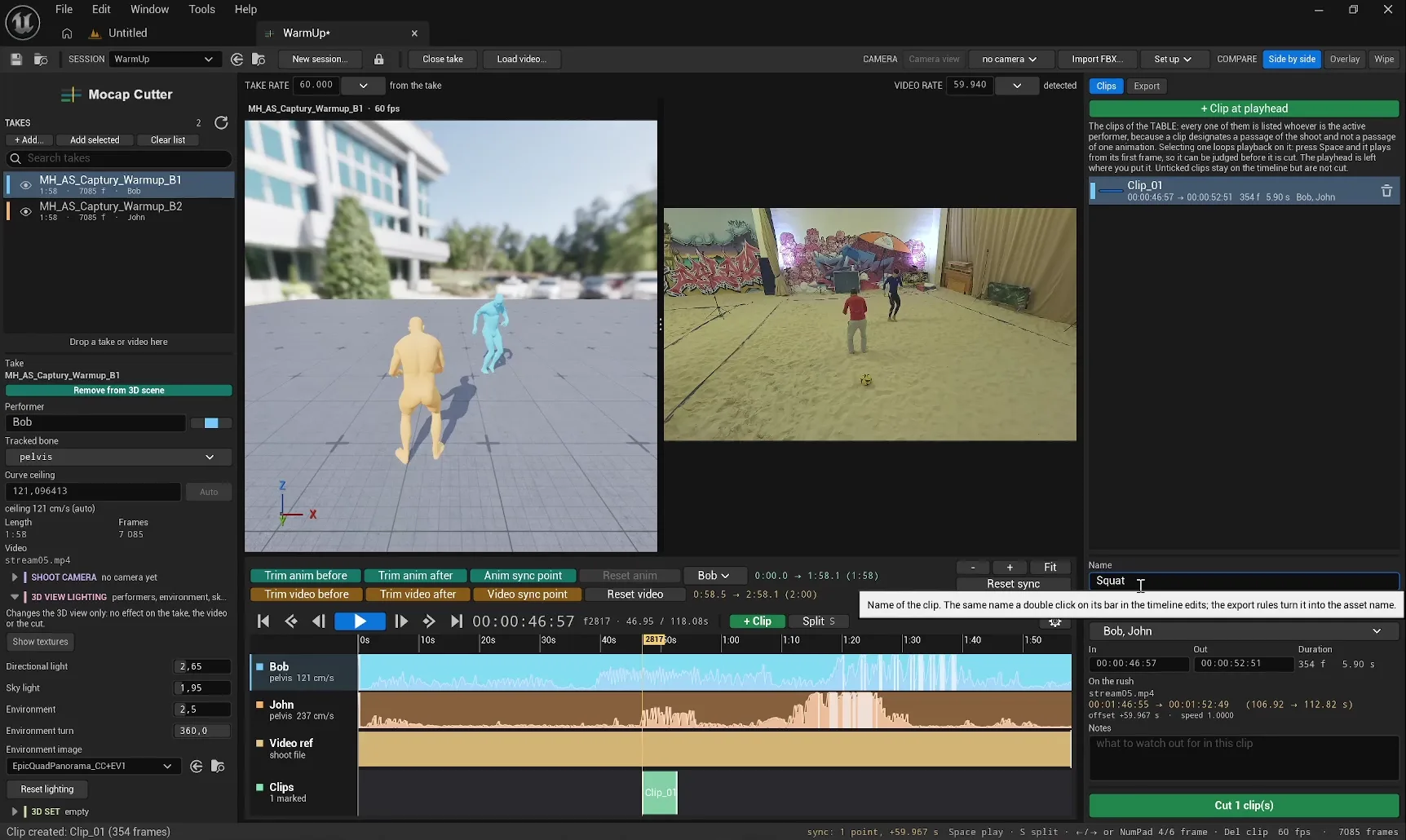
Clip bounds are stored as inclusive frame numbers of the take's animation data, never seconds, so they survive a re-save. A clip is a passage of the shoot: it is listed and editable whoever is the active performer, and its projection onto whichever take is on screen is recomputed live through the rush. Performers are referenced as the takes they were captured in, so renaming a performer never makes a clip lie. A bound that would invert the clip or fall outside the take is refused with a message rather than silently clamped.
Exporting
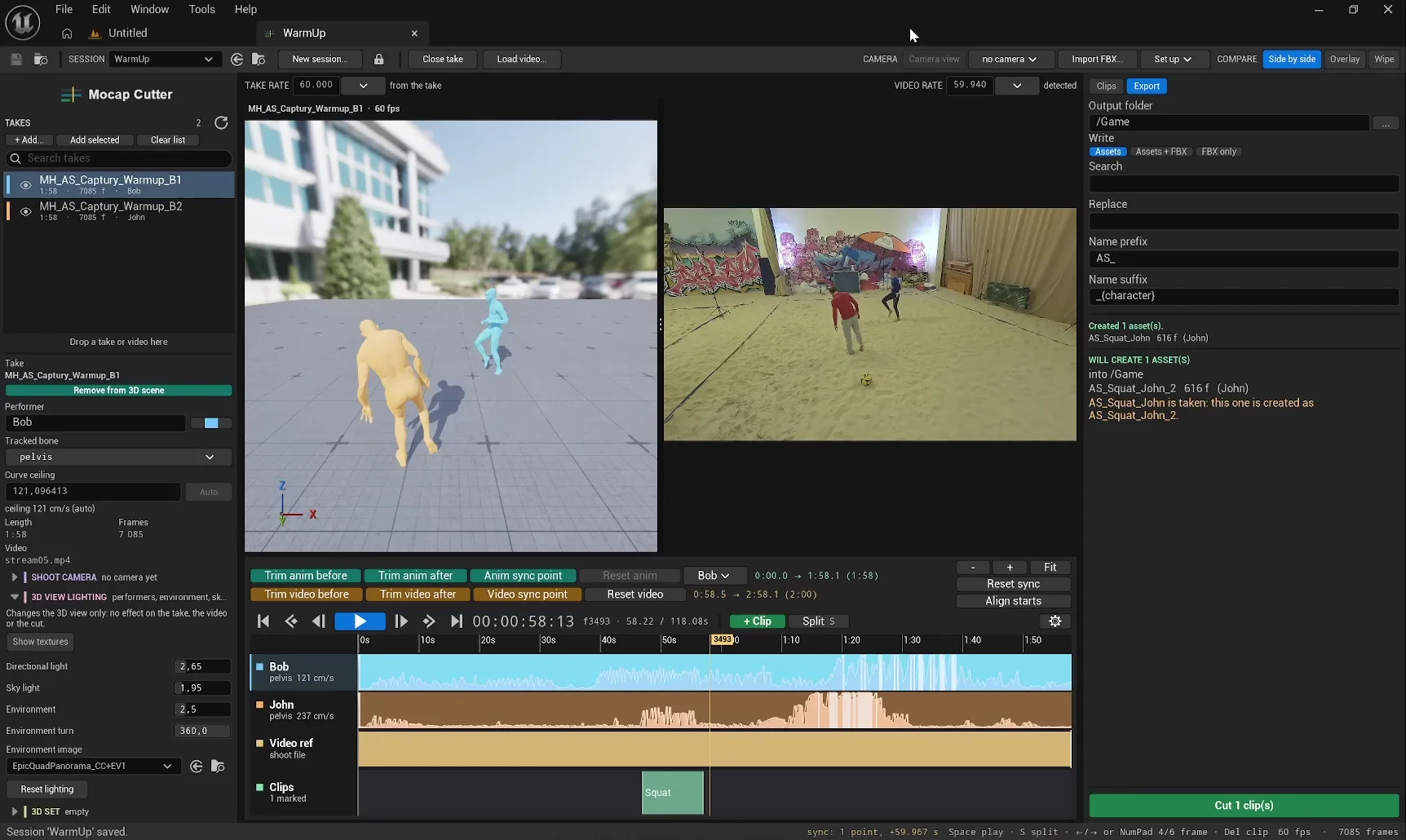
Open the Export tab in the right column.
| Option | Meaning |
|---|---|
| Output folder | Content package path, e.g. /Game/Animations/Locomotion. Empty: a Clips subfolder of the take's own folder, never among the raw takes. |
| Write | Assets, Assets + FBX, or FBX only. In FBX only the intermediate asset is deleted once the file is written and the project is left as found. |
| FBX folder | Absolute path on disk, created if missing. No default; a cut with no folder refuses to write rather than guess. |
| with the mesh and its bind pose | Writes the skeletal mesh into the FBX, and with it the bind pose. On: self-describing file. Off: joints and curves only, smaller. |
| rest pose at frame 0 | Reference pose on frame 0 of the FBX, clip starting on the next frame, as capture software does. FBX only by design; AnimSequence assets never get it. |
| Search / Replace | Case sensitive text replacement applied to the clip name before prefix and suffix. |
| Name prefix / suffix | See naming convention below. |
The preview block lists exactly what the cut will create (WILL CREATE N ASSET(S)), resolved by the same code the run uses. If an asset with the same name already exists, the plugin creates a new one suffixed _2 instead of overwriting it, and the preview says so. Press Cut N clip(s). The report shows assets created, FBX files written, warnings and one sentence per refusal.
The cut duplicates the take and crops it with the engine's own trim, so bone tracks, curves, attributes, additive settings, retarget source and compression settings all come across. Notifies, notify tracks and authored sync markers are dropped before the crop. Each output carries a CelsiorClipSourceUserData with the rush file, frame rate, in and out timecodes, offset, time scale, source take and frame range, exposed as asset registry tags (GamecelsiorRushFile, CelsiorRushIn, CelsiorRushOut, GamecelsiorRushFps, GamecelsiorSyncOffset, GamecelsiorSyncTimeScale, GamecelsiorSourceFrames…).
Naming convention
The final asset name is built in this order:
- the clip name, with Search replaced by Replace;
- Name prefix + that + Name suffix, tokens resolved;
- sanitised as a legal Unreal object name.
| Token | Resolves to |
|---|---|
{performer} | The performer the asset is being cut for, i.e. the owner of the take it is carved from. |
{character} | Alias of {performer}, kept for rules written before the multi-performer cut. |
Tokens are case insensitive. A token with nothing to insert takes one adjacent separator with it (_, -, space or .), so AS_{performer}_ reads AS_ and never AS__. Defaults: prefix AS_, suffix _{character}; a clip named Dodge_01 performed by Hunter yields AS_Dodge_01_Hunter. Because the cut produces one asset per ticked performer, the performer belongs somewhere in the name.
Settings
Project Settings › Plugins › Gamecelsior Anim Tools (UGamecelsiorAnimToolsSettings, stored per project per user). The Export tab edits the same object.
| Setting | Default | Description |
|---|---|---|
OutputFolder | empty | Content folder for cut clips. Empty means a Clips subfolder of the take's folder. |
CutOutput | Assets | Assets, Assets + FBX, FBX only. |
FbxOutputFolder | empty | Absolute folder for FBX files. |
bExportFbxMesh | true | Write the skeletal mesh and bind pose into the FBX. |
bFbxRestPoseFrame | true | Reference pose on frame 0 of the FBX. |
NamePrefix | AS_ | Prepended after search/replace. Tokens allowed. |
NameSuffix | _{character} | Appended after search/replace. Tokens allowed. |
SearchFor / ReplaceWith | empty | Case sensitive replacement in the clip name. |
Keyboard
| Key | Action |
|---|---|
| Space | Play / pause (loops the selected clip) |
| S | Split the clip under the playhead |
| ← / → (NumPad 4 / 6) | Step one frame on the active track |
| Delete | Delete the selected clip |
| Shift while dragging | Suspend magnetic snapping |
| Ctrl+Z / Ctrl+S | Editor undo / save, as usual |
MCP toolset
Not included in the Fab version. This optional toolset is only part of the builds downloaded from gamecelsior.com; everything else on this page applies to both.
The plugin ships an optional toolset, UGamecelsiorMocapToolset, registered with the engine's ToolsetRegistry plugin. Every function is AICallable and drives the same cut engine the panel uses. Takes are addressed by their rank in the session; clip bounds are frames of their own take. It is only compiled when ToolsetRegistry (Experimental, NoRedist) is present; without it, everything else works unchanged.
| Function | Parameters | Effect |
|---|---|---|
CreateSession | PackagePath, AssetName | Creates an empty session asset. |
GetSessionState | Session, bResolveTakes | Reads everything the session holds. Writes nothing. |
AddTake | Session, Take, Performer, TrackedBone, PerformerColor | Adds a take, returns its rank. |
RemoveTake | Session, TakeIndex | Removes a take with its sync and clips. |
SetRush | Session, VideoFilePath, FrameRateOverride | Sets the shoot video for every take present. |
AddSyncPoint | Session, TakeIndex, AnimSeconds, VideoSeconds | Marks an instant seen twice and solves the sync. |
ClearSyncPoints | Session, TakeIndex | Back to the neutral placement. |
SetTrims | Session, TakeIndex, AnimStart, AnimEnd, VideoStart, VideoEnd | Useful windows, in seconds. |
AddClip | Session, TakeIndex, Name, StartFrame, EndFrame, PerformerTakeIndices, Note | Adds a clip, returns its rank. |
RemoveClip / SetClipEnabled / SetClipColor | Session, TakeIndex, ClipIndex, … | Clip housekeeping. |
PreviewCut | Session, ActiveTakeIndex, OutputFolder | Lists every asset the cut would create. Creates nothing. |
RunCut | Session, ActiveTakeIndex, OutputFolder, NamePrefix, Output, FbxFolder | Runs the cut. Not undoable. |
SaveSession | Session | Writes the session to disk. |
Requirements and limitations
- Unreal Engine 5.6, 5.7 or 5.8, Windows 64-bit. Editor only; nothing added to packaged builds.
- Video playback through the engine's
ElectraPlayerandWmfMediaplugins, enabled automatically with Mocap Cutter. - Cadence between 1 and 1000 fps; variable frame rate files should be given a manual rate.
- Time scale clamped to 0.05–20; two sync points closer than one second are refused; at most two pairs per take.
- One rush shown per session at a time. Fixed shoot cameras only.
- The cut is not undoable.
Third-party notice
FBX camera reading and FBX export use the Autodesk FBX SDK that ships with Unreal Engine; the plugin links against it and redistributes it in no form.
"This software contains Autodesk(R) FBX(R) code developed by Autodesk, Inc. Copyright 2019 Autodesk, Inc. All rights, reserved. Such code is provided "as is" and Autodesk, Inc. disclaims any and all warranties, whether express or implied, including without limitation the implied warranties of merchantability, fitness for a particular purpose or non-infringement of third party rights. In no event shall Autodesk, Inc. be liable for any direct, indirect, incidental, special, exemplary, or consequential damages (including, but not limited to, procurement of substitute goods or services; loss of use, data, or profits; or business interruption) however caused and on any theory of liability, whether in contract, strict liability, or tort (including negligence or otherwise) arising in any way out of such code."
Autodesk and FBX are registered trademarks or trademarks of Autodesk, Inc., and/or its subsidiaries and/or affiliates in the USA and/or other countries. Unreal® is a trademark or registered trademark of Epic Games, Inc. The builds downloaded from gamecelsior.com also carry this notice as ThirdPartyNotices.md.